Maximize meeting impact with AI meeting notes
Taking notes is important but can be distracting. AI notetakers help all attendees get the most value out of meetings.


PREP TIME
5m

Run TIME
10m

Persons
1+
5-second summary
- Decide when to use an AI notetaker and when not to.
- See tips that help people feel comfortable and open during your meeting.
- Learn tips to keep knowledge flowing beyond the meeting and turn ideas into action.
WHAT YOU WILL NEED
- Video conferencing or meeting space
- AI notetaker, like Loom or Zoom
PLAY resources
Loom video communication tool
How to maximize meeting impact with AI meeting notes
Stay focused in meetings and turn notes into insights and action with an AI notetaker.
What are AI meeting notes?
AI-powered tools are helping teams make meetings more productive and collaborative. AI notetakers, like Loom and Zoom, can serve as your secure personal assistant, recording and transcribing notes, summarizing key takeaways, and creating action items.
Why run the “Maximize meeting impact with AI meeting notes” Play?
AI notetakers can be hugely beneficial if you know when and how to use them. This Play walks you through the steps so you can maximize impact and minimize risk.
When should you use an AI notetaker?
An AI notetaker is useful in just about any low-risk meeting. It’s particularly helpful for:
- Remembering what happened during meetings you led or attended
- Catching up on meetings you missed
- Summarizing topics discussed and next steps
Turning notes into action items
AI meeting notes are not a good idea if the discussion topic is risky or sensitive unless you can commit to pausing the notetaker during delicate parts of the conversation.
See the Play for a helpful flowchart to determine when you should and shouldn’t consider using AI meeting notes.
3 benefits of AI meeting notes
Here are three benefits of using AI meeting notes:
- Reduce meeting overload:
77% of workers say they’re frequently in meetings that end in a decision to schedule a follow-up meeting. Using AI to automate sharing notes and capturing action items can reduce the need for follow-up meetings. - Reduce burnout:
Collaborative AI use can help employees feel more motivated to generate new ideas and explore other AI use cases. Research shows that feeling more energized at work is connected to increased job satisfaction and lower burnout. - Free up time for valuable tasks:
The most strategic AI users reported saving up to 105 minutes per day with AI, while even simple AI users saved an average of 53 minutes a day. Leveraging AI tools frees up time for employees to engage in more creative, innovative, or impactful tasks.
1. Before the meeting: Decide to include or exclude your AI notetaker
Est. time: 2 MINs
Using an AI notetaker is powerful if it makes sense for the conversation. Inviting the AI tool to every meeting by default saves time and effort from having to manually add it every time. Then, before each meeting, ask yourself:
Is it risky to have a long-lasting, searchable recording of this meeting?
Is this a conversation that is not highly sensitive or emotional?
Am I comfortable with everyone on the invite list receiving the notes and recording?
If your answer to any of these questions is “no,” using AI meeting notes may not be a good idea unless all attendees are on board and you commit to pausing the notetaker during delicate parts of the conversation.
Meetings that may be more sensitive and risky include:
- One-on-one meetings between managers and direct reports
- Performance conversations
- Vendor negotiations
- Sensitive strategy or decision-making meetings, especially when company politics are involved
- Vent sessions or emotionally charged discussions
Tip: Adjust settings
Tools like Loom and Zoom allow you to control automatic recording, who can access meeting notes and recordings, and more. Make sure your settings are configured appropriately.

2. Before the meeting: Add optional attendees for visibility
Est. time: 2 MIN
Even if someone can’t or doesn’t need to join the live meeting, you can still invite them as an optional attendee so they can stay informed by receiving the notes and recording.
Make sure to mark attendees as “optional” when you create the invitation so they are aware they don’t have to attend.
Tip: Can’t attend?
If you’re invited to a meeting but can’t attend, ask the organizer to use an AI notetaker so you can see the notes and recording. Some tools let you add the notetaker yourself, but it’s best to check with the host first out of respect and sensitivity.
3. During the meeting: Announce the AI notetaker
Est. time: 1 min
A quick heads-up and some thoughtful facilitation can go a long way.
Let attendees know the notetaker is on, and confirm everyone is comfortable. This is especially important if you're unsure whether sensitive topics might come up.
If attendees have questions about how AI meeting notes work, it can be helpful to share an FAQ page at the top, like this one from Loom or this one from Zoom.
Tip: Let people take their own notes, too
Research shows taking notes improves retention, so if people want to take their own notes, don’t call them out or assume it’s redundant.
4. During the meeting: Pause and resume when needed
Est. time: 1 min
Knowing the meeting is being recorded may influence how comfortable people feel and how open they are. Help foster psychological safety by:
- Pausing the recording for casual catch-ups or personal small talk at the beginning of the meeting
- Making sure everyone knows how to pause and resume the recording if they want to say something off the record
- Normalizing using the pause/resume feature so it feels natural, not awkward

5. After the meeting:
Est. time: 10 min
Whether you hosted the meeting or missed it, make the most of what’s been captured.
If you led the meeting:
Redact if needed
Did something sensitive come up that shouldn’t have been captured and you forgot to pause? No worries. As the meeting owner, you can quickly edit the AI transcript and notes to remove anything that shouldn’t stick around.
Share intentionally
If someone didn’t attend the meeting but needs to stay informed about a decision or discussion, don’t just send them the link and hope for the best. Share a short summary so they can understand the key points quickly and/or a timestamp of the part of the recording you want them to watch, along with an explanation of why it matters and what you need from them.
Make it discoverable
Unleash knowledge by thinking about who else could benefit from the information covered in your meeting. You could add a link to the recording and a short summary of the meeting to a Confluence page, Jira ticket, or a team Slack channel—wherever context will help others move work forward.
If you missed the meeting:
There are several ways to catch up and contribute. Depending on your time and needs, you can:
Read the AI-generated summary
Scan the transcript
Watch the sections of the recording that matter most to you
Share reactions, questions, and ideas to contribute to the ongoing conversation
Tip: Edit and take action
AI notetaker tools like Loom and Zoom offer lots of ways to edit your meeting recording, notes, and transcript, then take action. For example, check out how you can use Loom’s AI features to edit summaries and chapters, remove sensitive parts of the transcript and recording, and automatically create tasks for action items.

Still have questions?
Start a conversation with other Atlassian Team Playbook users, get support, or provide feedback.
Other plays you may like

Optimize with AI
AI Innovation Day
Get the most out of GenAI with a focused day of learning and doing.

Optimize with AI
AI Teammate
Build your first AI agent

Innovate with AI
AI Training Workshop
Run a workshop to help anyone learn the basics of how to use AI at work.
Innovate with AI
Define AI’s Project Role
Identify opportunities to use AI to support the success of your next project.
Stay up to date
Get the latest Plays and work life advice when you sign up for our newsletter.

Note: Make a product-agnostic version of this image:


A sample script to share with attendees about how to pause and resume AI meeting notes
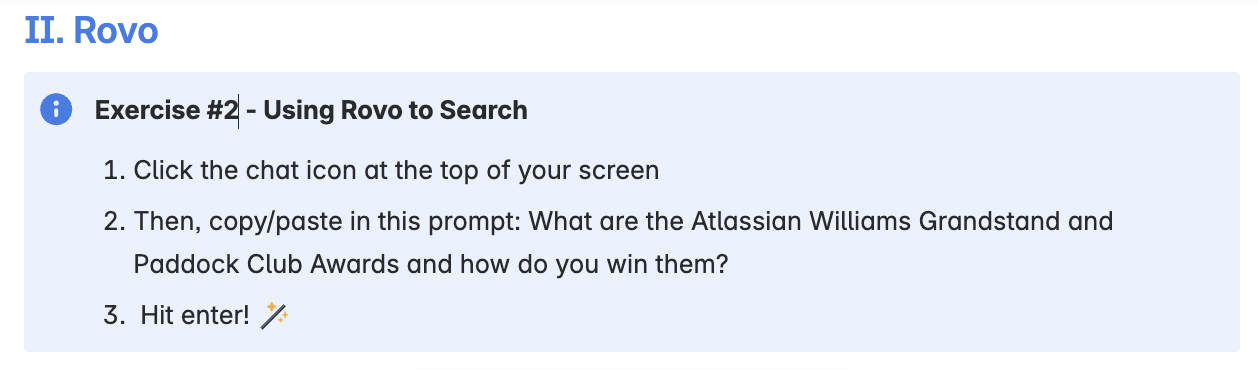
Do: An example exercise to practice searching with Rovo Search or Chat
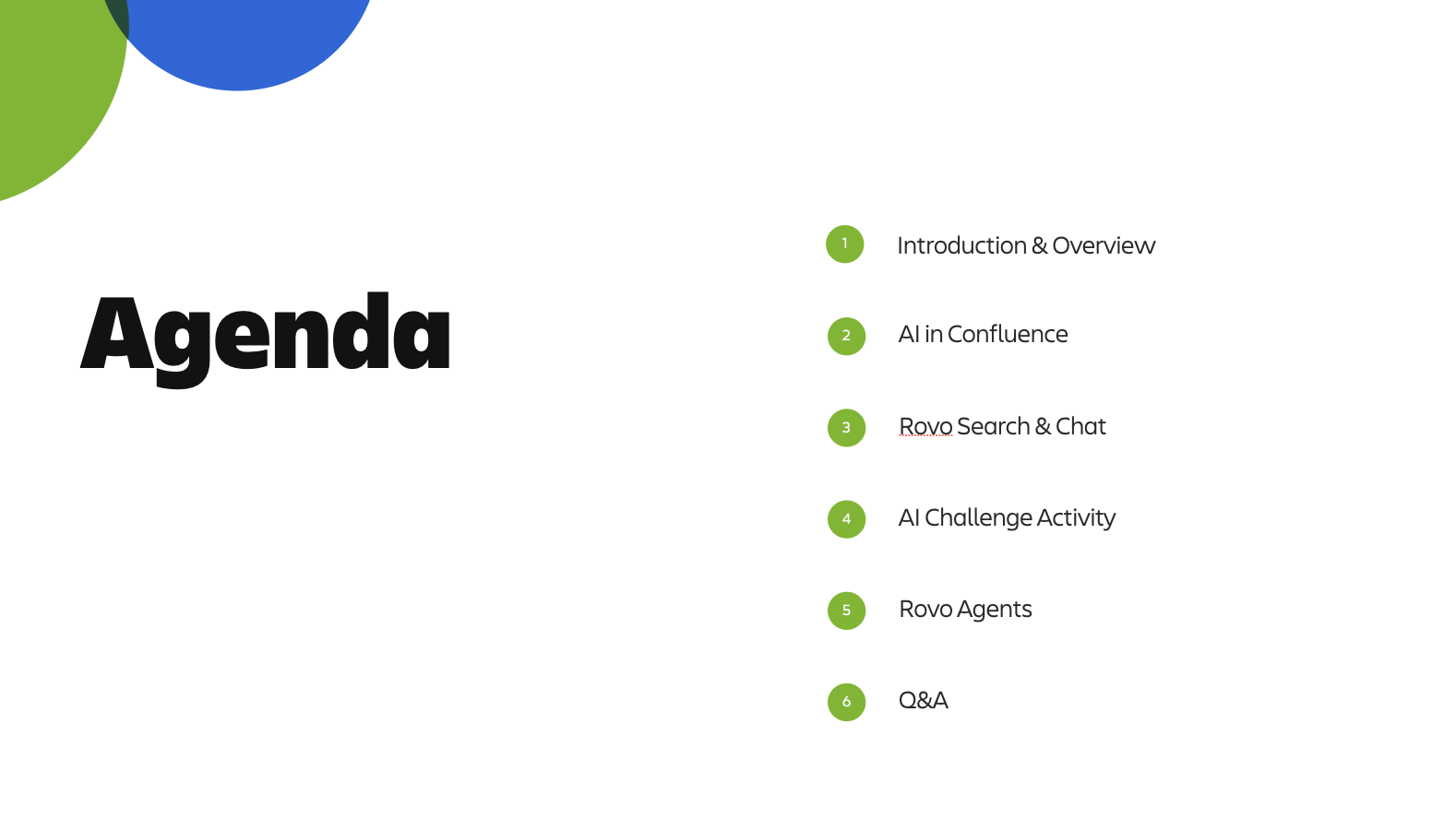
Sample agenda for the AI Training Workshop
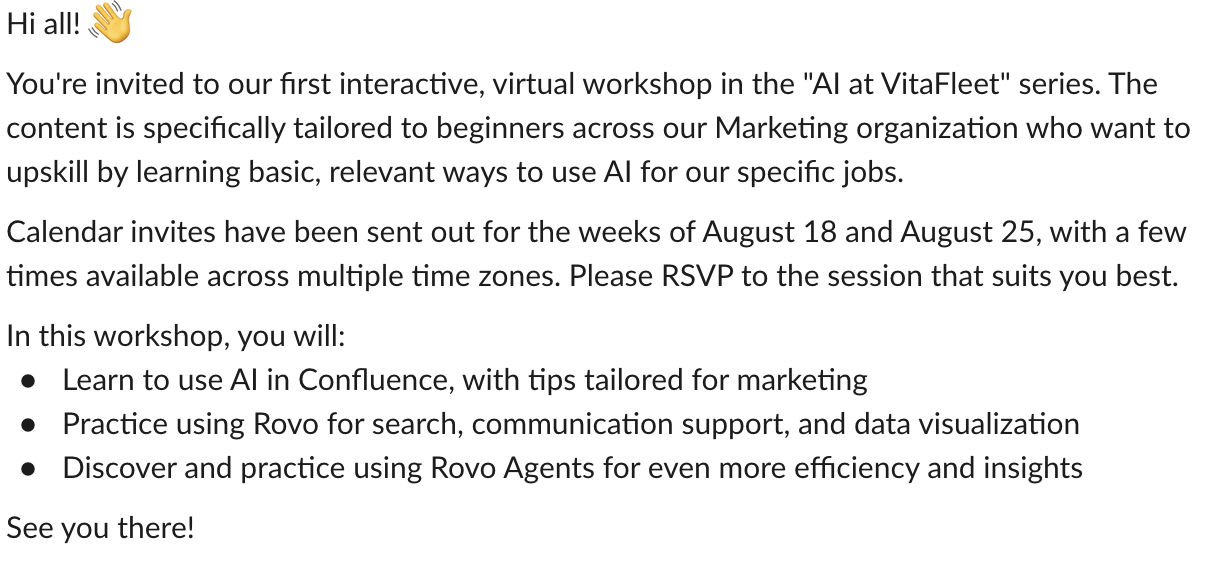
Sample announcement in Slack
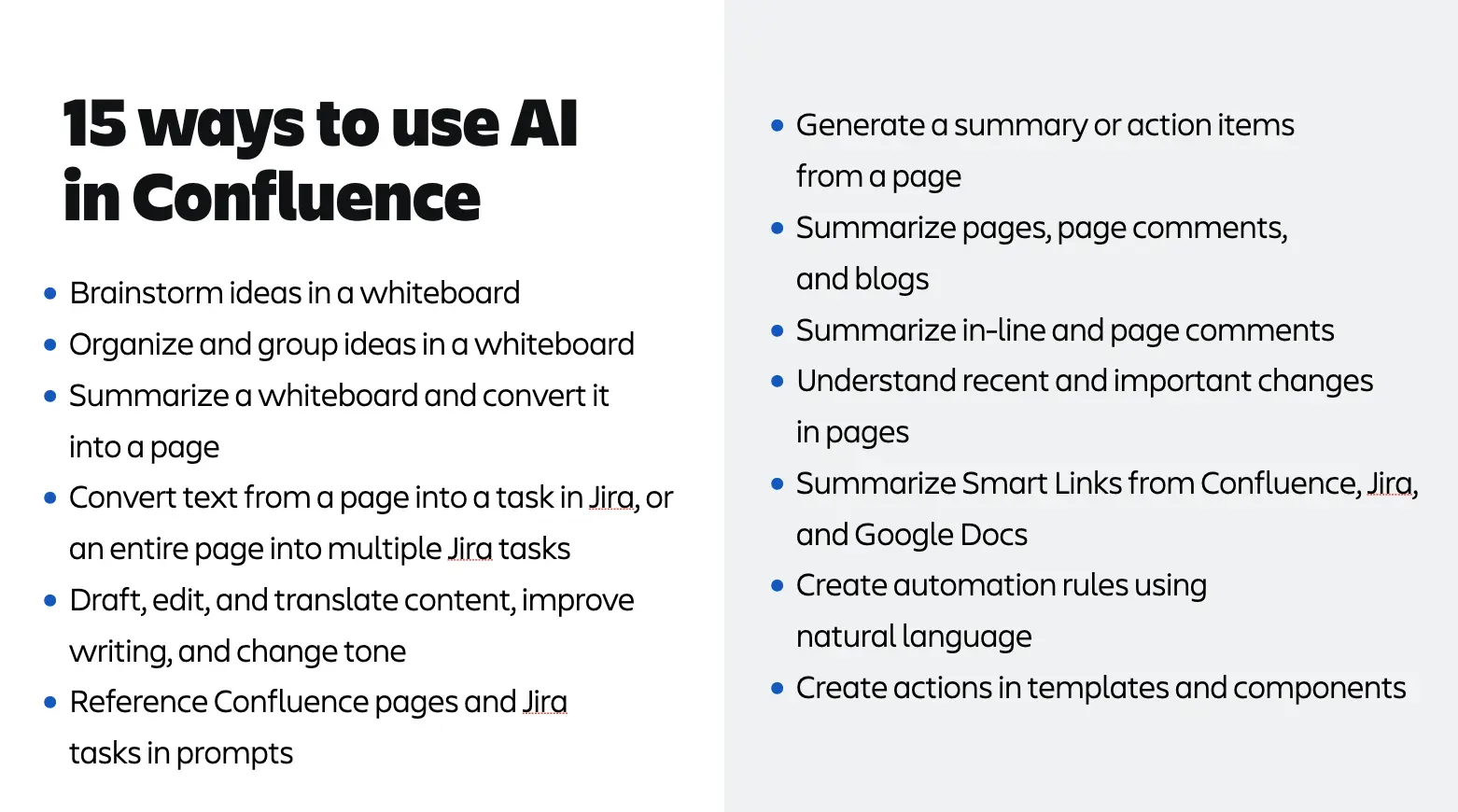
Sample use cases: AI in Confluence
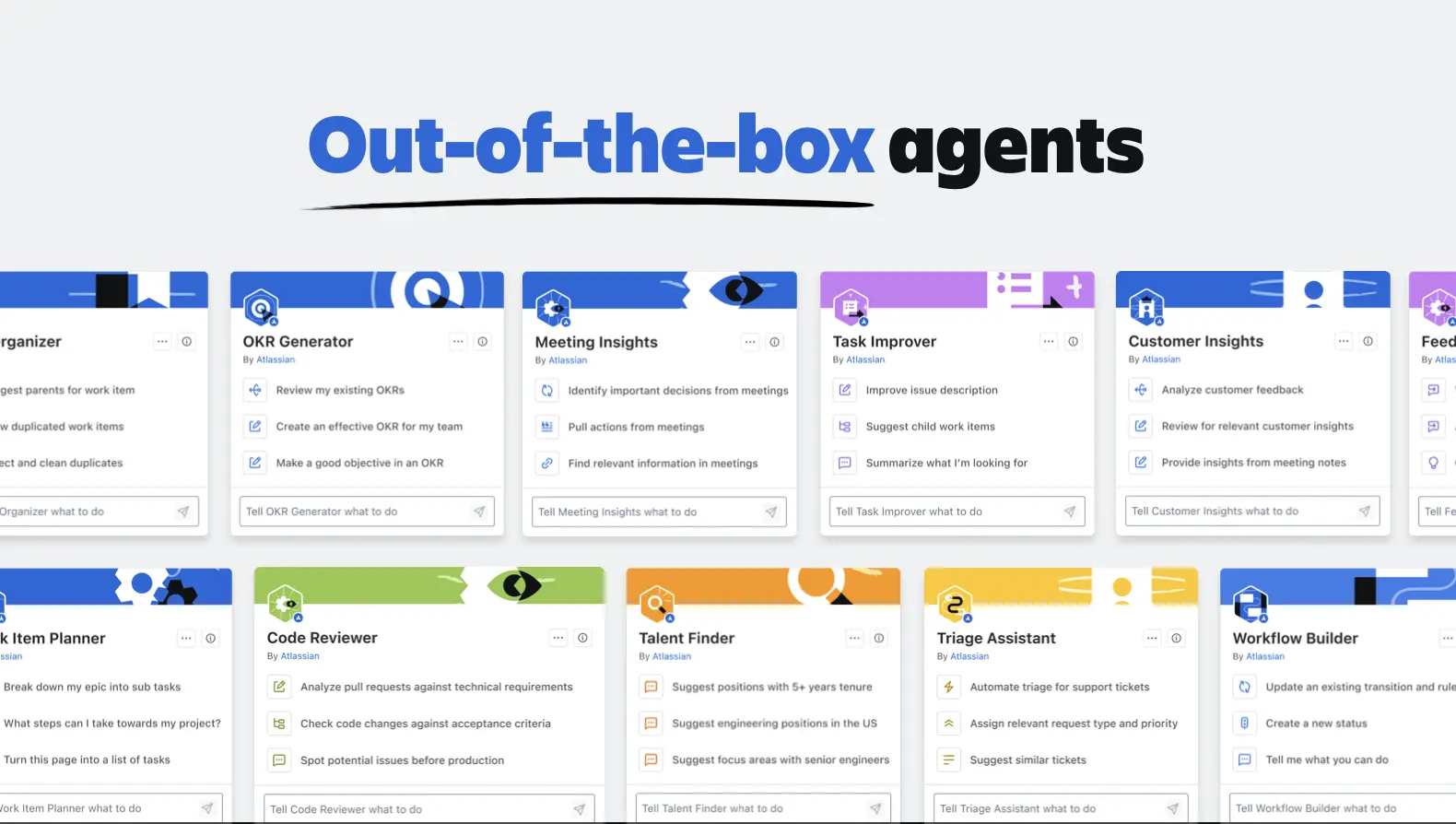
Do: Try using an out-of-the-box Rovo Agent
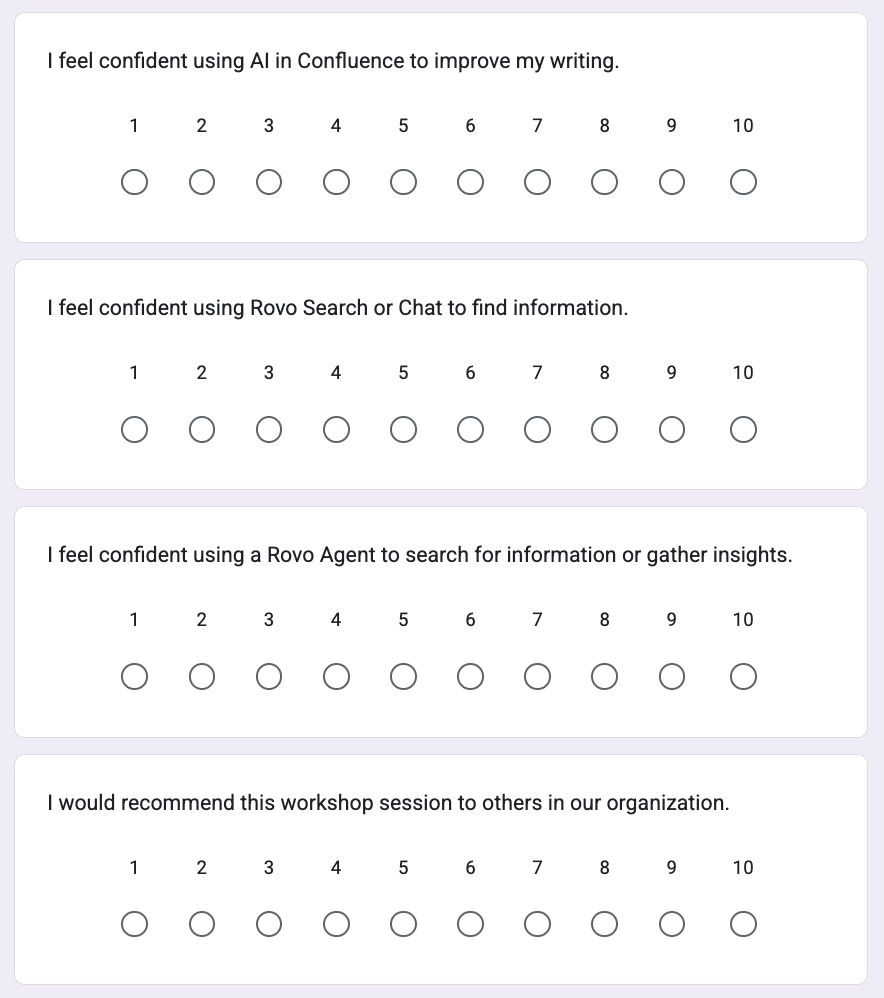
Sample closing survey
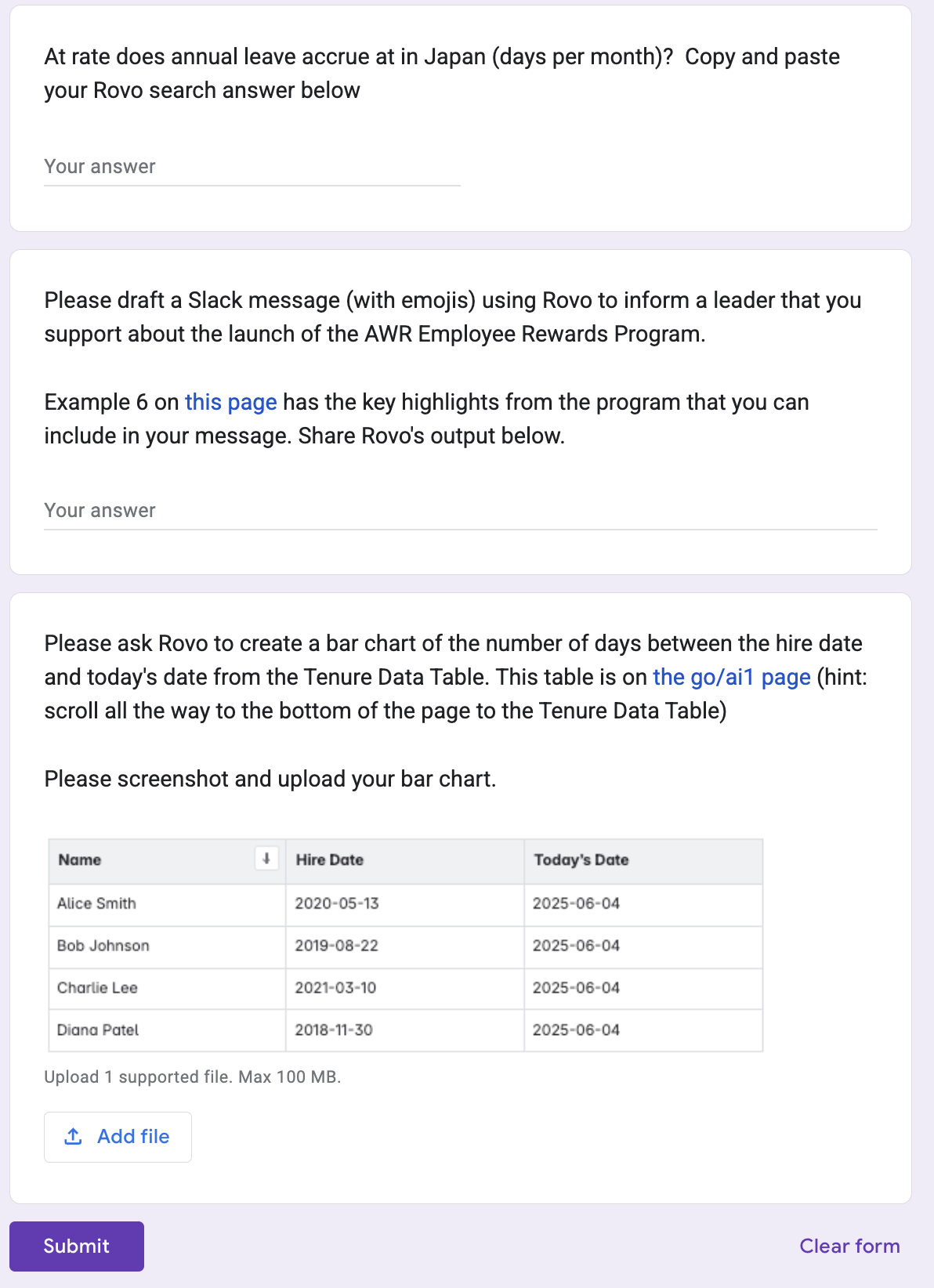
Sample interactive exercise, using a simple Google form survey