
Most new tools get introduced through a feature list. I’d rather start with a workflow.
That’s how I approached the new Rovo MCP server. Instead of talking about it abstractly, I wanted to test it in a workflow developers hit all the time: fixing a bug.
The question I wanted to answer was simple: can I take a bug from issue creation to deployed fix without leaving the same working session? That’s the real friction in this kind of work; not the fix itself, but all the tool-switching around it.
In this post, I’ll walk through that end-to-end workflow using Rovo MCP: creating the Jira issue, fixing the bug in code, redeploying the app, validating the change, and updating Jira once the work is done.
For this walkthrough, I’m using Cursor, but the workflow itself isn’t tied to Cursor. The same pattern applies in other AI coding tools that support MCP.
The Workflow Developers Already Know
Let’s start with the workflow most of us already recognize.
You’re testing an app and notice a bug. Maybe it’s a status badge rendering incorrectly, a button that doesn’t update a state variable, or a UI field isn’t saving what it should. The fix itself might be straightforward, but that’s rarely the only task.
In a typical bug-fix workflow, you’re doing something closer to this:
- Find the bug
- Open Jira and create a ticket
- Write the summary, description, and reproduction steps
- Attach screenshots or other context
- Switch back to your IDE and find the relevant code
- Make the fix
- Deploy, install, or run tests to validate
- Go back to Jira and update issue status
That process works. It’s also full of context switching.
You move from observing the problem, to documenting it, to fixing it, to validating it, and then back again to manually update the system of record. None of those steps are individually hard. The friction comes from the constant jumping between surfaces and the little bits of ceremony around your work.
And more importantly, every switch breaks your flow. You lose momentum, you lose context, and sometimes you delay or skip the administrative steps entirely because they feel like interruptions.
That’s the part I wanted to pressure-test with Rovo MCP.
The Workflow I Wanted to Test with Rovo MCP
For this walkthrough, I used a small demo app and a simple bug-fix scenario. The app is intentionally lightweight because I wanted the focus to stay on the workflow, not on the complexity of the codebase.
Here’s the loop I wanted to see if I could complete from one continuous working session in Cursor:
- Identify a bug
- Ask Cursor to create a Jira bug ticket using Rovo MCP
- Fix the issue directly using Cursor
- Run the normal validation flow
- Update the Jira issue from Cursor to reflect that the bug has been fixed
That’s it.
The interesting part isn’t that AI can help write code. It’s that the Jira steps; the parts that usually pull you out of your IDE; can now happen inline with the rest of your work.
More importantly, this changes how you behave while you’re working. Instead of deferring tasks like ticket creation or updates, you can handle them immediately while the context is still fresh. That makes it easier to capture accurate details, close the loop faster, and keep your system of record aligned with what’s actually happening in the code.
It also enables something subtle but powerful: being more proactive. When you notice a bug while working on something else, you don’t have to decide whether it’s worth the interruption. You can capture it, fix it, and move on in the same flow; turning small observations into completed work instead of future backlog.
The Demo Setup
For this walkthrough, I’m using a simple Forge app I built called My Open Issues.
The app is intentionally lightweight: it pulls in the issues assigned to me and displays them in a dashboard view so I can quickly see what’s open, what’s in progress, and what needs my attention without digging through Jira filters every time. It’s basically a snapshot of my current work.
In this case, the issue was in the Summary column. Instead of rendering the actual issue summary text, the app was rendering the underlying object value in the UI.
This gave me a concrete bug to walk through, so the next question was: can I handle the full loop from Cursor? In other words:
See the issue  capture it in Jira fix it validate it update the issue in Jira
That’s the workflow I wanted to test with Rovo MCP, without leaving the same working session.

Step 1: Create the Jira issue from Cursor
At this point, the usual next step would be to open Jira in a browser and manually create a bug ticket. Instead, I stayed in Cursor and created the issue directly with Rovo MCP enabled.
My prompt to Cursor was simple:
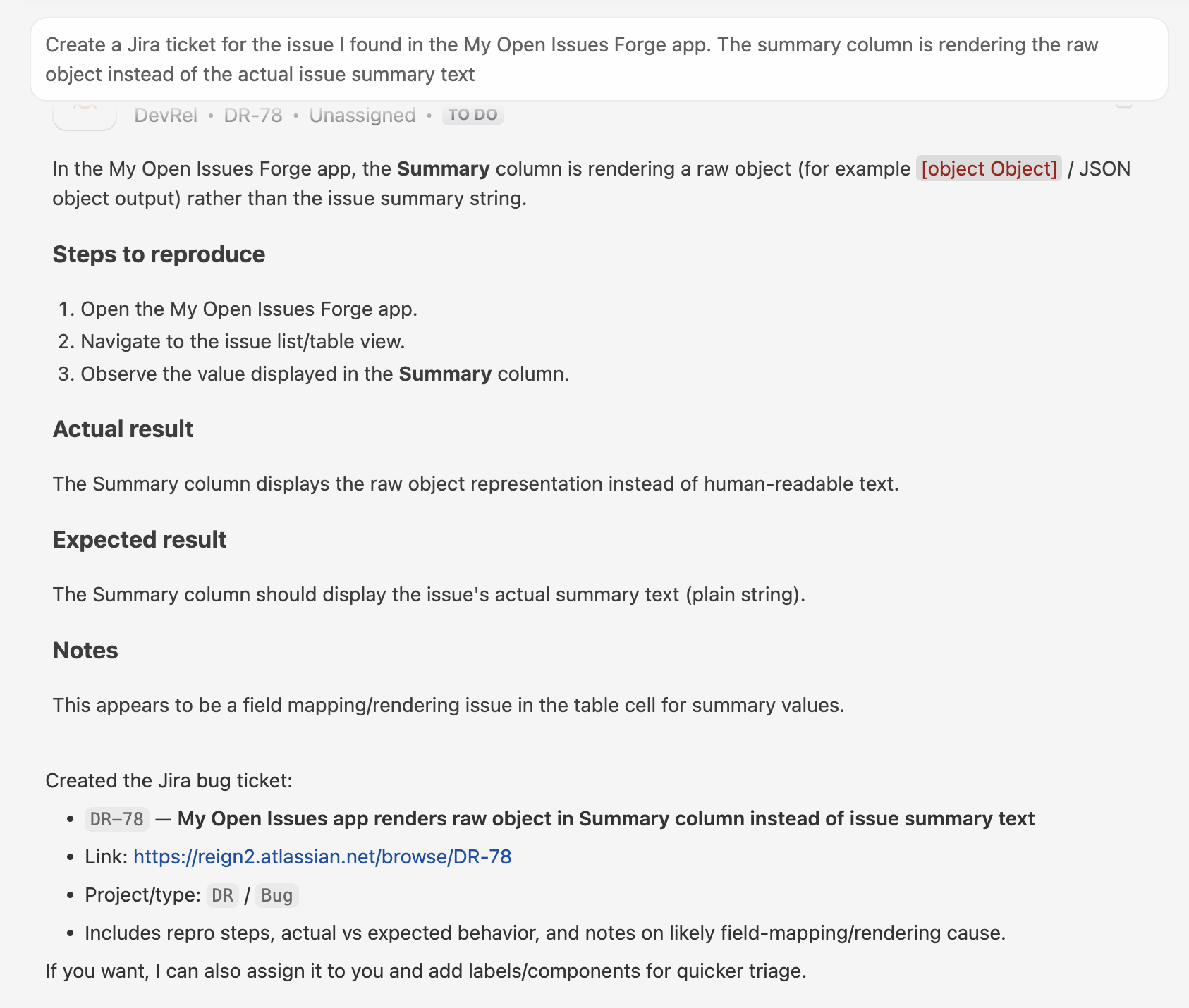
Create a Jira ticket for the issue I found in the My Open Issues Forge app. The summary column is rendering the raw object instead of the actual issue summary text
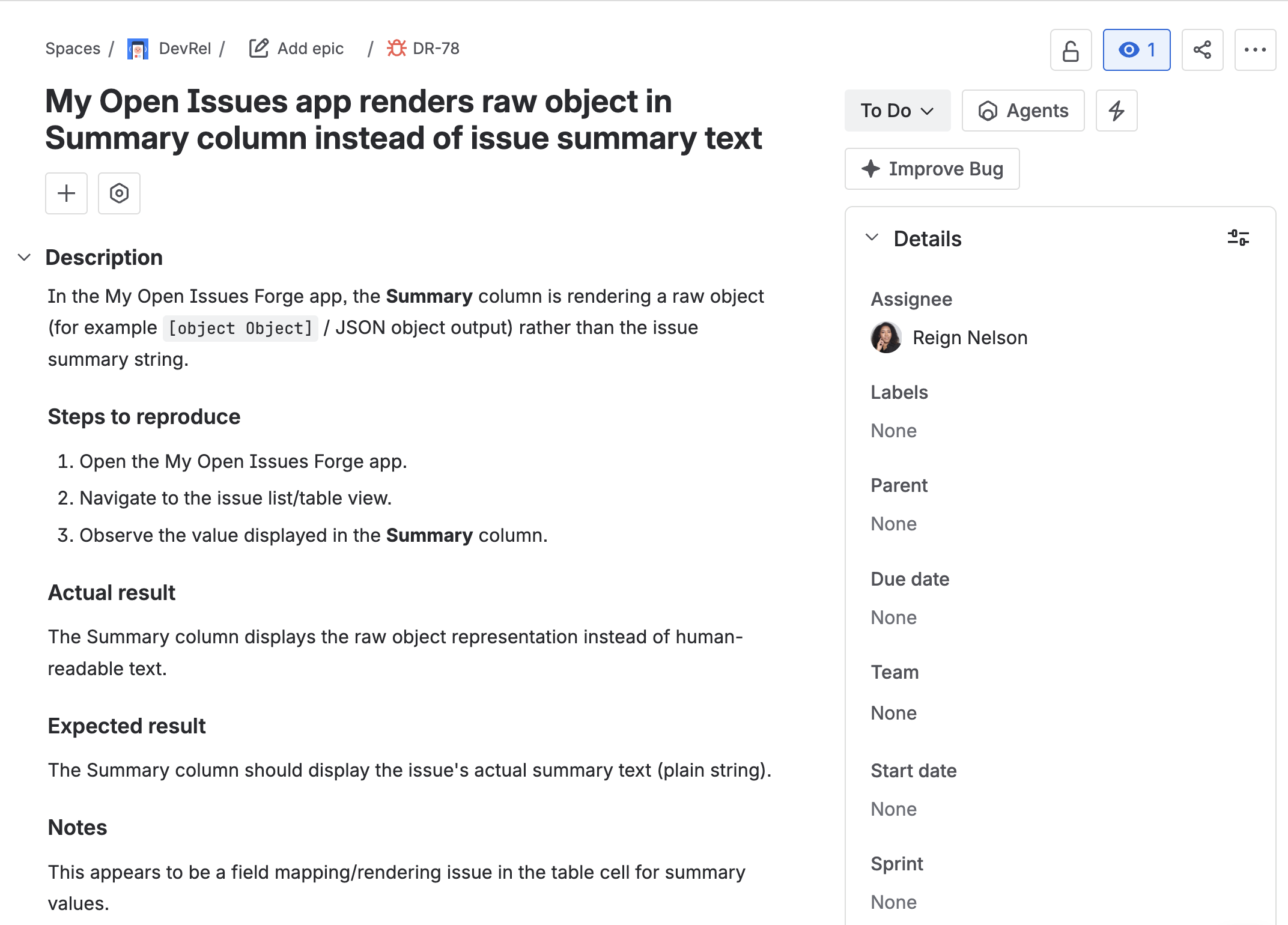
From there, Rovo MCP created the issue and returned the result in Cursor.
This is where the workflow already feels better. Instead of telling myself I’ll file it later, I can just capture it on the spot while I’m already in the work. That makes it much easier to be proactive about small issues instead of letting them pile up for later.
Step 2: Fix the Bug in Code
Once the Jira issue was created, I stayed in Cursor and moved straight into the fix.
To keep this workflow simple, I used the Jira issue as the source of truth for the bug and prompted Cursor to fix the issue directly from there. Since the app code lives locally, I also pointed Cursor to the project folder so it had the right context to work with.
The prompt was essentially:
Open the my-open-issues folder and fix the bug described in the Jira ticket we just created and redeploy the app.
That gave Cursor everything it needed in one place: the Jira issue describing the bug, the local app code where the fix needed to happen, and the instruction to redeploy once the change was made.
In this case, the fix was updating the rendering logic so the Summary column displays the actual issue summary text instead of the raw object value.
That’s the part I like the most about this workflow. The issue is already captured, the code is already local, and I can move straight from “bug reported” to “bug fixed and redeployed” without bouncing between tools to stitch everything together.
Step 3: Validate the fix
Once the app was redeployed, the validation step was simple: I reloaded the page and checked the My Open Issues table again.
This time, the Summary column rendered the actual issue summary text instead of the raw object value, so I could confirm the bug was fixed.
That’s all I needed for this walkthrough.

Step 4: Update the Jira issue from Cursor
Once I confirmed the fix, the last step was to update the Jira issue from Cursor so the system of record reflected what had actually happened.
Again, the prompt can stay simple:
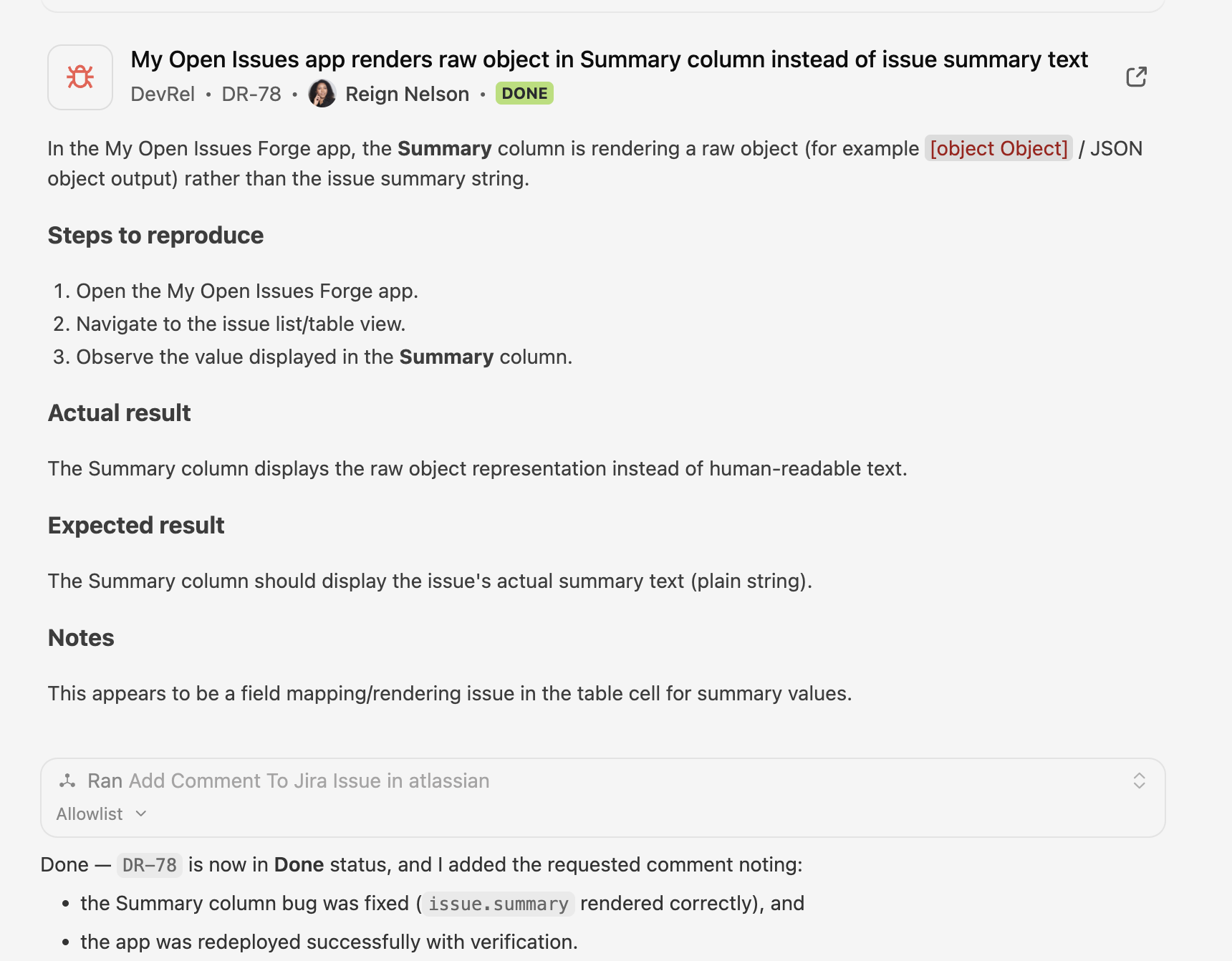
Update the Jira ticket we just fixed to note that the Summary column bug was resolved and the app was redeployed successfully.
That closes the loop without forcing me to switch contexts again. I don’t have to fix the bug, reload the app, and then leave myself a mental note to go back and update Jira later. I can finish the work while I’m still in the same session and while the full context is still fresh.
That’s what makes this workflow feel complete. The issue gets captured when I notice it, the fix happens in the same working session, and Jira stays aligned with the actual state of the work.

What Changed in Practice
The biggest difference in this workflow isn’t that it removes all effort. It’s that it removes a lot of friction around the effort.
Instead of this:
Find bug open Jira create issue switch back to IDE fix code redeploy validate go back to Jira
I get something much tighter:
Find bug create issue from Cursor fix and redeploy from Cursor validate update issue from Cursor
That changes the feel of the work quite a bit.
If I stay in one working session longer, I’m more likely to capture the issue while the details are still fresh. I’m more likely to update the ticket right after the fix instead of pushing it off until later. And when I notice a bug in the middle of doing something else, I can act on it quickly instead of deciding whether it’s worth the interruption.
This workflow makes it easier to be proactive. It lowers the cost of doing the right thing.
Why I like this workflow
I like this workflow because it makes it easier to move quickly on small issues without turning them into a bunch of overhead. Instead of spotting a bug and deciding whether I want to interrupt myself to document it, I can just handle it in the moment: create the Jira issue, fix it, redeploy, validate it, and update the ticket from the same working session.
For me, that has three big benefits:
- It saves me time: less context switching between Jira, my IDE, and the app just to keep the workflow moving.
- It makes it easier to be proactive: I can act on bugs as I find them instead of letting them pile up for later.
- It improves time-to-value: small fixes are often the fastest way to add value, and this makes it easier to close those loops quickly while keeping Jira accurate.
Try it yourself
Pick a small bug in one of your own apps, then walk through the same loop:
- Create the Jira issue from Cursor
- Fix the bug in the local codebase
- Redeploy and validate the change
- Update the issue from Cursor
It’s a straightforward way to see how Rovo MCP can reduce the friction around normal development work; especially the Jira steps that usually pull you out of flow.
Next Steps:
- Watch our livestream as the Rovo MCP Product Manager breaks down how teams are leveraging Rovo MCP in workflows across their entire tech stack
- Connect Atlassian Rovo MCP server to Cursor or your favorite AI coding tool. Get started here.